
May 31, 2025
I chose this lab to help me learn Active Directory, Windows Server and realistic help desk workflows. Using VirtualBox and Windows ISOs, I created a self-contained lab to simulate a small enterprise environment and troubleshoot real-world IT issues.
Lab Environment Overview
| COMPONENT | DETAILS |
| Virtualization Tool | Oracle VirtualBox |
| Domain Controller | Windows Server 2022 – Static IP: 10.2.15 |
| Clients | Windows 10 VMs (Desktop 1, Desktop2) |
| Host Machine | Lenovo IdeaPad, AMD Ryzen 3 7320U CPU, 8GB RAM, Windows 11 |
| Domain Name | skc11.com |
| Tools Used | ADUC, GPMC, RSAT, CMD |
Setting Up Windows Server 2022 in Virtual Box
Downloaded Windows Server 2022 evaluation ISO from Microsoft
Created a new VM in Virtual Box with:
- 4GB RAM
- 3 Virtual CPUs
- 50GB Disk Space
Installed the OS and gave it a static IP (10.2.15)
Renamed the machine to Server2022
Configured networking via “Host Only Adapter”

Next, I promoted Server to Domain Controller.
- I used Server Manager -> Add Roles and Features.
- Added Active Directory Domain Services
- Created a new forest: skc11.com
- Promoted the server and completed the reboot.
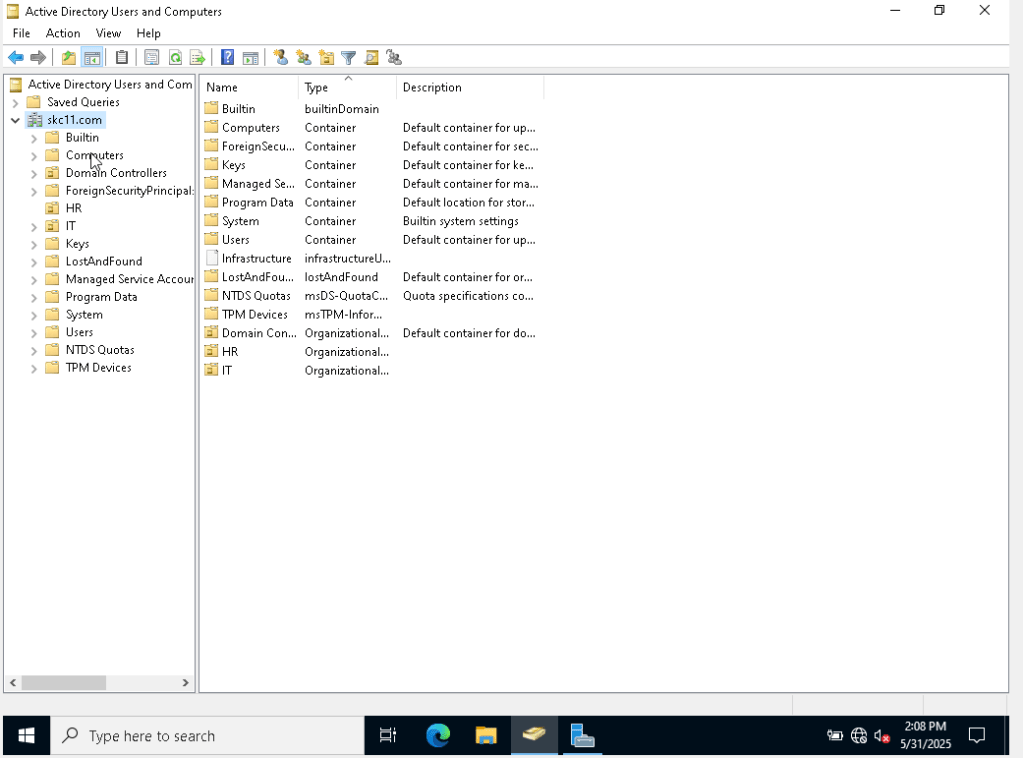
Created Users and Organizational Units (OUs)
- Used Active Directory Users and Computers (ADUC) to:
- Create OUs: Helpdesk, IT, HR
- Add users using “New User” and “Copy” methods
- Enabled Advanced Features to access Attribute Editor and find hidden containers.
- I learned that a common mistake new users can make when trying to search for a user but they are not showing up. You need to search the “Entire Directory” instead of just the local domain or container.

Enabled Group Policy and Enforced Domain Security
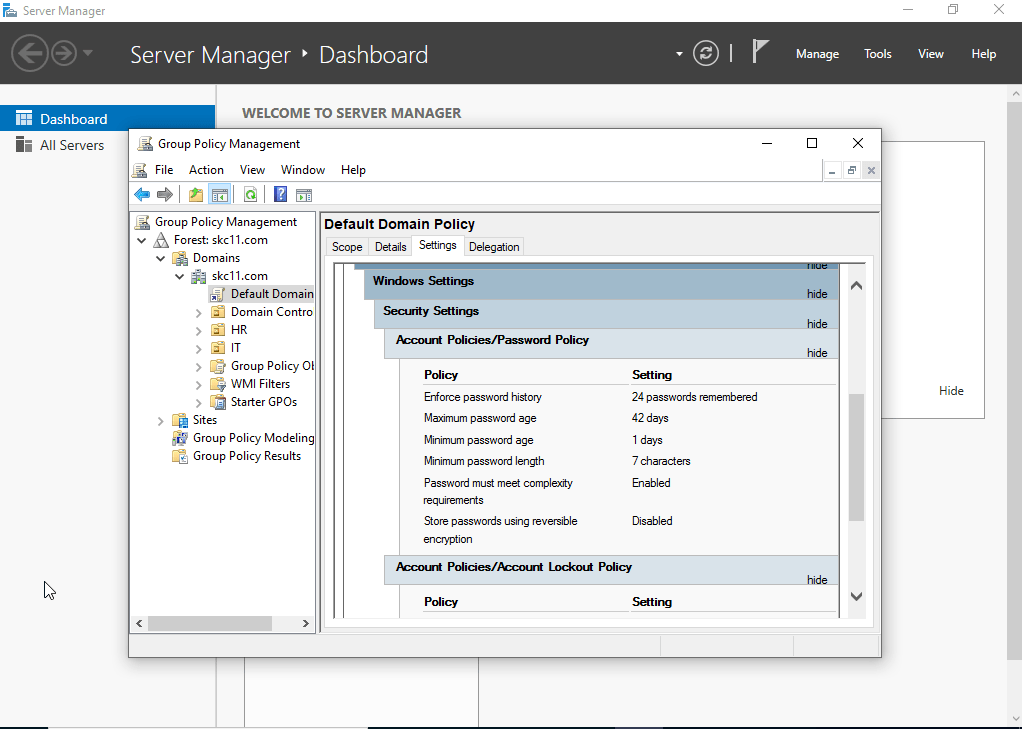
- Opened Group Policy Management
- Edited Default Domain Policy to”
- Set password complexity
- Enforce account lockout after failed attempts
- Enabled enforcement of policies at the domain level
RSOP (Resultant Set of Policy):
Used gpresult /r > C:\results.txt to verify applied policies.
Added Client Machines + RSAT Access
- Installed Windows 10 on two separate VMs
- Assigned static IPs and joined them to the domain (skc11.com)
- Installed RSAT Tools to allow Active Directory access from client side


Here are some day to day admin Tasks I Practiced:
| Task | Tool or Command |
| Check IP config | ipconfig /all |
| View mapped drives | net use |
| Check user password expiry | net user helpdesk(user) /domain |
| Unlock user account | ADUC -> User -> Account Tab -> Uncheck lockout box |
| Reset Password | AUDC -> Right Click User -> Reset Password |
| RSOP report | gpresult /r |
| Rejoin Computer to domain | System settings -> Domain -> Re-authenticate |
Common Issues I simulated & Resolved
- Account Lockouts – Used ADUC to unlock user
- Account Expiration – Adjusted expiration settings to “Never”
- Client PC Falling off the Domain – Rejoined via domain credentials
- DNS Mismatch – Corrected primary DNS Server to point to domain controller
- Group Policy Conflicts – Used RSOP to trace and fix policy inheritance issues.
Resources


 Shaun Carrillo's Cybersecurity Portfolio
Leave a comment